REMOTE REVIEW INFORMATION
Remote screening using an iPad Pro, Macbook with Retina Display
The following is to help you achieve the best possible viewing.
I highly recommend new(er) Apple iOS devices like iPad Pro, Macbook Pro with Retina Display. These screens are highly accurate but need a few adjustments to make your viewing experience better. If using a Macbook I feel the Google Chrome browser gives the best image.
For MacBooks always make sure Nightshift is off.
For FRAME.IO or Resolve Remote Monitor review on an iPad Pro:
You must put it into Reference Mode. Go to settings/display, scroll to the bottom, click Advanced & turn on Reference Mode.
**The latest frame.io app must be used for the iPad Pro.
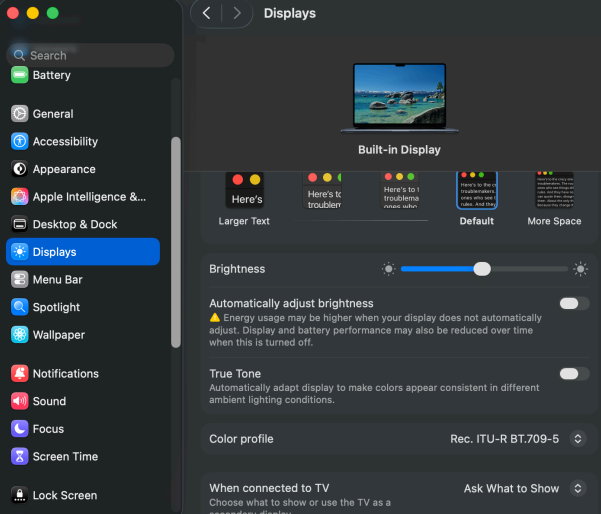
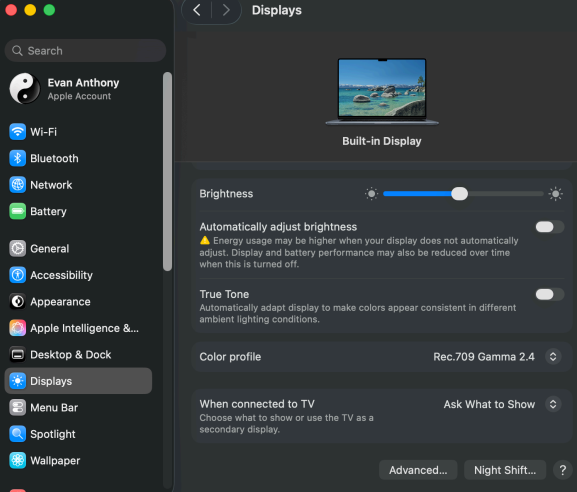
For frame.io on an MacBook Air or Pro with Retina Display please use these display settings and the Google Chrome Browser:
For Resolve Remote Monitor on an MacBook Air or Pro without Retina Display please use these display settings:
For older iPad Pro Gen 3–4 SDR & HDR:
Open the Settings app, and go to the Display & Brightness tab.
- Dark appearance should be turned ON
- Automatic Appearance should be turned OFF
- True Tone should be turned OFF
- Night Shift should be turned OFF
Set the Brightness slider to approximately 50% for SDR & 80% for HDR
For iPad Pro Gen 5-6 SDR & HDR:
Open the Settings app, and go to the Display & Brightness tab.
- Reference Mode should be turned ON
Your internet connection speed will affect streaming quality. If other devices in your home are streaming video it can slow down the connection and possibly the quality. Also please close any other programs/tabs open that are not needed.
Viewing environment: Please make sure the room you are in is dark like a color correction suite and if reviewing more then once please be in the same environment and lighting as the previous times.